

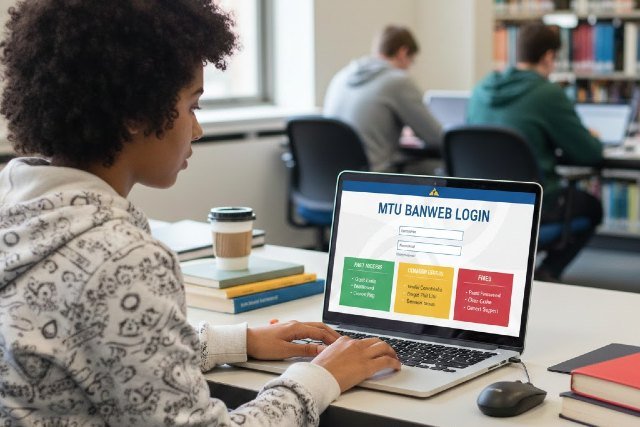

If you’re trying to get into Mtu Banweb to register for classes, check your financial aid, view grades, or handle employee self-service tasks, you’re not alone — Banweb is one of the most-used campus systems. But because it touches sensitive student and payroll data, it’s also picky about passwords, browsers, and security steps.
This guide walks you through the fastest way to log in, the most common errors people hit, and the exact fixes that usually work on the first try — plus what to do when the issue is on the university side.
What is Mtu Banweb?
Mtu Banweb is Michigan Technological University’s Banner Self-Service portal (Banweb) used for student and employee services, accessed through Michigan Tech’s Single Sign-On pages.
Depending on your role, you might use Banweb to:
- Students: registration, schedules, grades, transcripts, billing, financial aid
- Employees: employee self-service and time entry (where enabled)
Michigan Tech has also been transitioning many “front door” experiences to Ellucian Experience/MyMichiganTech, which can change where you start your workflow — even if some functions still route you into Banweb behind the scenes.
Fastest way to log in to Mtu Banweb (quick steps)
For most users, the fastest reliable login path is:
- Open the official Michigan Tech Banweb SSO page in a modern browser.
- Enter your Michigan Tech username and password.
- If prompted, complete additional verification (depending on the service you’re accessing and your account settings).
If you land on a page that says “Please visit https://www.banweb.mtu.edu to log in,” it’s usually because you opened a deep link without the proper SSO session — start again from the main login entry.
Pro tip (speed): If you use Banweb often, bookmark the SSO login page (not a random internal page). Bookmarks to internal pages commonly break after timeouts or upgrades.
Mtu Banweb vs MyMichiganTech (Experience): which one should you use?
Michigan Tech’s Ellucian Experience/MyMichiganTech is intended to be the primary, mobile-friendly dashboard for accessing online services, with single sign-on and a customizable interface.
So what’s the difference in real life?
- MyMichiganTech/Experience is increasingly the starting point for day-to-day services.
- Mtu Banweb is still the system of record interface for many Banner self-service functions and certain employee workflows.
If you’re a student who recently noticed registration flows shifting, that’s consistent with Michigan Tech moving key workflows to Experience.
Internal link suggestion: If your site has it, link a short explainer page like: /mymichigantech-vs-banweb
Common Mtu Banweb login errors and the fastest fixes
Below are the issues I see most often with Banner/Banweb-style logins — and the fixes that consistently work.
Error 1: “Invalid username/password” (or it just refreshes)
This usually comes down to one of these:
- Caps Lock or keyboard layout mismatch
- Password recently changed but browser saved an old one
- You’re using the wrong login page (deep link bypassing SSO)
Fixes:
- Manually type your password (don’t autofill).
- Use a private/incognito window once. If it works there, clear cookies for the Banweb/MTU login domain in your normal browser.
- Start from the Michigan Tech SSO login page again.
Scenario: You changed your password this morning, but your phone keeps trying the old saved password and locks you out by lunchtime. Turning off autofill for that site prevents repeat lockouts.
Error 2: Forgot password / can’t reset
Michigan Tech’s account/password services are handled through official IT account management tools and guidance for systems like Banweb.
Fixes:
- Use the “Forgot your password?” option on the SSO page (when available).
- If you have access to Michigan Tech’s identity self-service portal, use that for account recovery flows when applicable.
Internal link suggestion: /password-reset and /account-recovery
Error 3: “Compatibility View” message (especially on older setups)
Some Michigan Tech Banner pages explicitly warn that you’re viewing the page in Compatibility View and recommend turning it off for best results.
This is common if:
- You’re on older Internet Explorer mode / legacy enterprise settings
- Your browser is forcing compatibility rendering for certain sites
Fixes:
- In Microsoft Edge, disable IE/Compatibility mode for the Banweb site.
- Try Edge (standard mode), Chrome, or Firefox.
- If you’re on a work machine with enforced settings, you may need IT to whitelist the site from compatibility settings.
Error 4: Endless redirect loop / blank page after login
This is usually a cookie/session problem — SSO can’t keep a stable session token.
Fixes:
- Clear cookies and site data for the Banweb/MTU login domains.
- Disable browser extensions that block scripts/cookies (ad blockers, privacy extensions) just for the login.
- Try a different browser to confirm it’s not a local profile issue.
Error 5: MFA / Duo issues (push not arriving, device changed)
Michigan Tech uses Duo MFA for many services to protect accounts and personal information.
Even when Banweb itself doesn’t always show a Duo prompt, related systems (Experience, VPN, or linked resources) often do.
Fixes:
- If you changed phones, re-enroll/reactivate your Duo device (or add a backup method).
- If push notifications aren’t arriving, open the Duo Mobile app manually and check connectivity.
- Ensure your phone’s time/date are set automatically (time drift can break approvals).
Why this matters: Microsoft has reported that enabling MFA can block over 99.9% of account compromise attacks, which is exactly why universities push MFA adoption.
Error 6: “Site is down” or pages won’t load during certain hours
Sometimes the issue isn’t your login — it’s maintenance or a service interruption.
Fixes:
- Try again after 10–20 minutes and test from a different network (cell hotspot vs Wi-Fi).
- Check Michigan Tech IT service pages or system status notices (if your campus publishes them).
- If it’s urgent (payroll cutoff, registration deadline), contact IT support with a screenshot and timestamp.
Tip: If you can reach the SSO page but internal menus fail, it may be partial downtime rather than a full outage.
Secure login best practices for Mtu Banweb (that also reduce errors)
Because Banweb ties into university identity and sensitive records, security steps also double as “fewer login failures.”
- Use a password manager — but avoid auto-submitting on Banweb pages until you confirm it filled the right field.
- Turn on MFA/keep your device methods current (Duo or equivalent).
- Avoid public Wi-Fi for registration/financial pages unless you’re on a trusted VPN.
- Log out on shared machines.
Michigan Tech policy emphasizes proper use and protection of university IT resources — practically, that means don’t share credentials and don’t leave sessions open.
Troubleshooting checklist (when you want the fastest “just fix it” path)
Here’s the order that solves most Mtu Banweb login problems quickly:
- Start from the official SSO login page, not a saved deep link.
- Try incognito/private browsing once
- Clear cookies/site data for the Banweb/MTU login domain
- Switch browser (Edge ↔ Chrome ↔ Firefox)
- Disable compatibility/IE mode if you see that warning
- Confirm your password works in other Michigan Tech services (email/portal)
- If MFA is involved, verify Duo device access
If none of those change anything, it’s time to escalate — because it’s likely an account status issue (locked account, role mismatch, backend outage).
FAQs
How do I log in to Mtu Banweb?
Go to Michigan Tech’s official Banweb Single Sign-On page, enter your username and password, and complete any verification prompts. If a deep link fails, start again from the main SSO entry page.
Why does Mtu Banweb say Compatibility View?
Some Michigan Tech Banner pages detect that your browser is rendering in Compatibility/IE mode and recommend turning it off for the best experience. Switch to a modern browser mode (Edge, Chrome, Firefox) and disable compatibility settings for the site.
What should I do if my Mtu Banweb password isn’t working?
First, manually type your password and try an incognito window. If it works there, clear cookies. If you truly forgot it, use the password recovery options provided through Michigan Tech’s account tools and guidance.
Is Mtu Banweb replaced by MyMichiganTech (Experience)?
Michigan Tech is transitioning many services to Ellucian Experience/MyMichiganTech as a central dashboard, but Banweb still exists for many Banner self-service functions and workflows.
Why does the login keep looping or redirecting?
That usually indicates a cookie/session issue. Clearing site cookies, disabling script-blocking extensions for the login, and starting from the SSO page resolves most redirect loops.
Conclusion: Get back into Mtu Banweb without the frustration
Most Mtu Banweb login issues aren’t “mysteries” — they’re usually caused by saved deep links, expired sessions, browser compatibility settings, or cookie problems. Start from the official SSO entry, use a modern browser without compatibility mode, and keep your account recovery/MFA methods updated.
If you manage your password properly and maintain MFA access, you’ll not only log in faster — you’ll also reduce account risk dramatically (Microsoft has reported MFA can block over 99.9% of account compromise attacks).
















Leave a comment